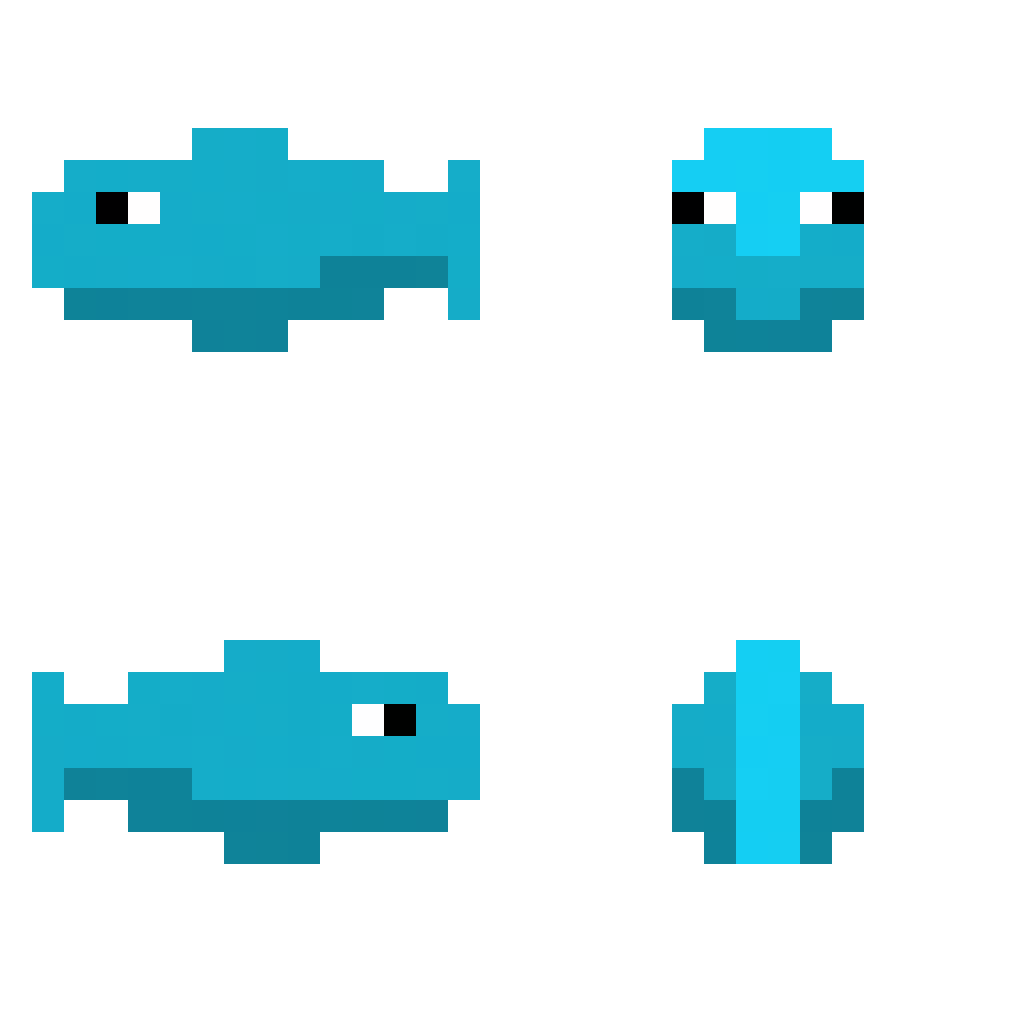
How to make pixel art animations using Piskel

Tools

Piskel homepage

Piskel Homepage

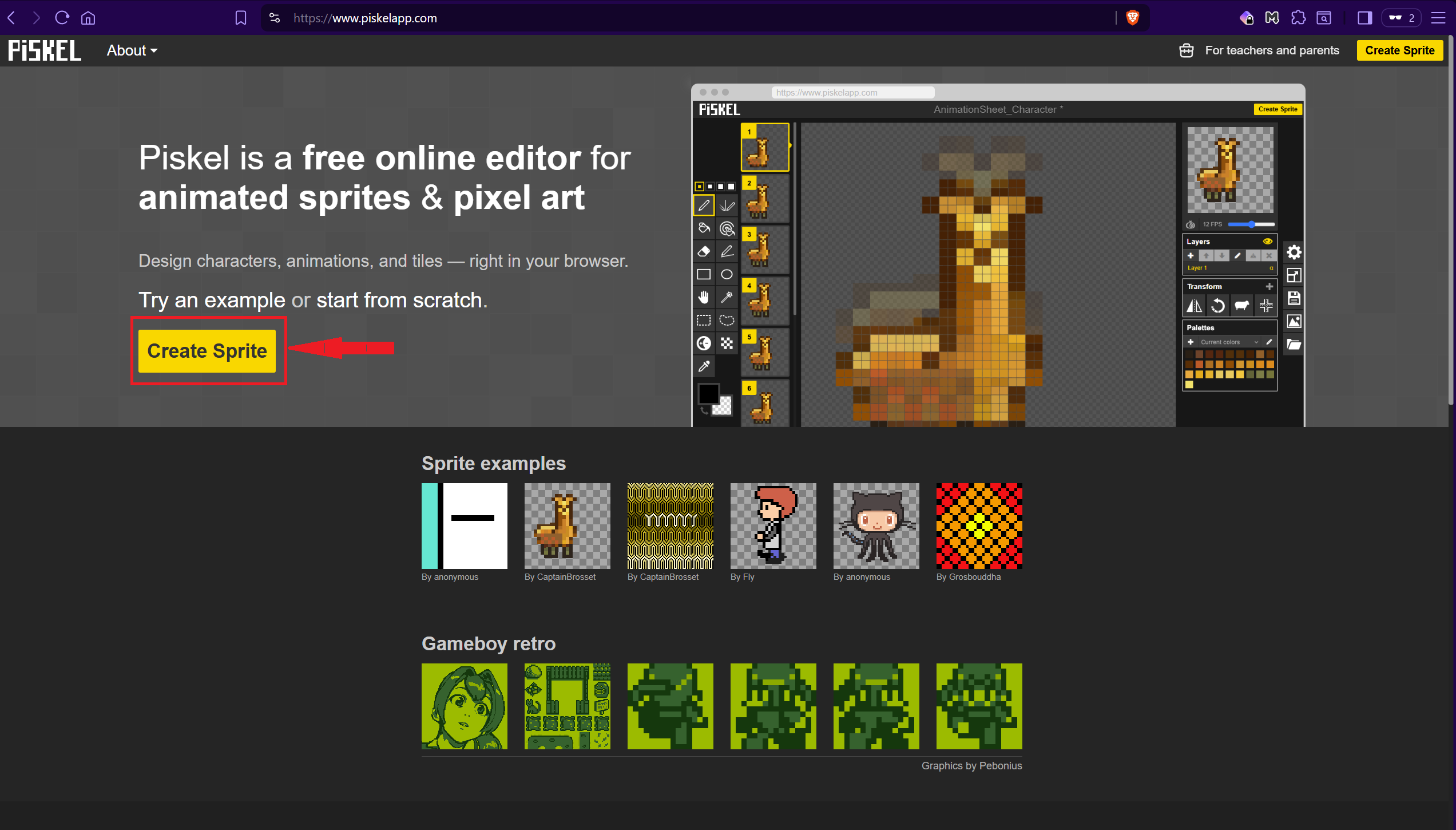
To start using Piskel for pixel art animations, go to their website at https://www.piskelapp.com. On their homepage, you can see example art and animations along with the “Create Sprite” button. To get started, click either the Create Sprite button on the left or top right.
Main canvas

The Interface

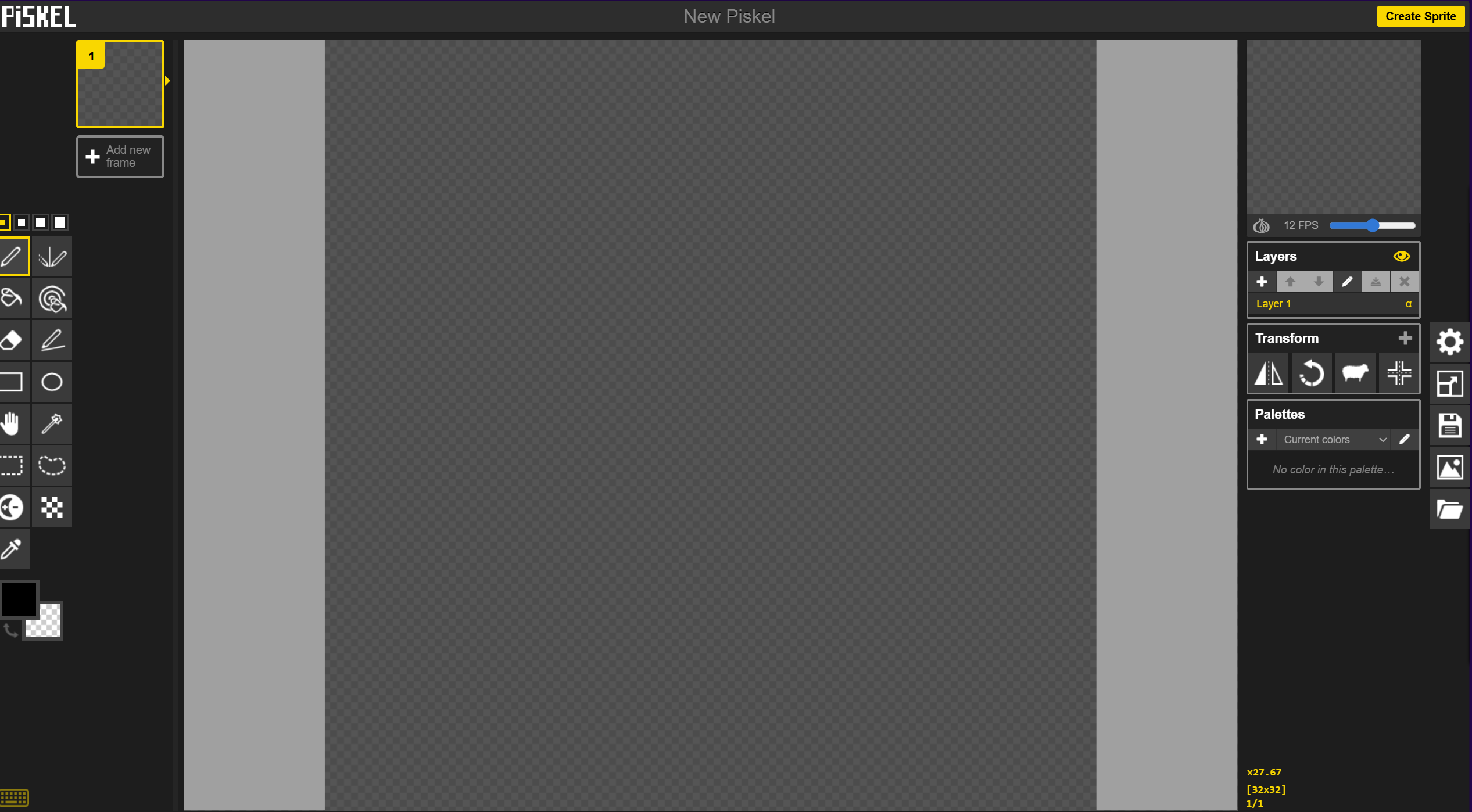
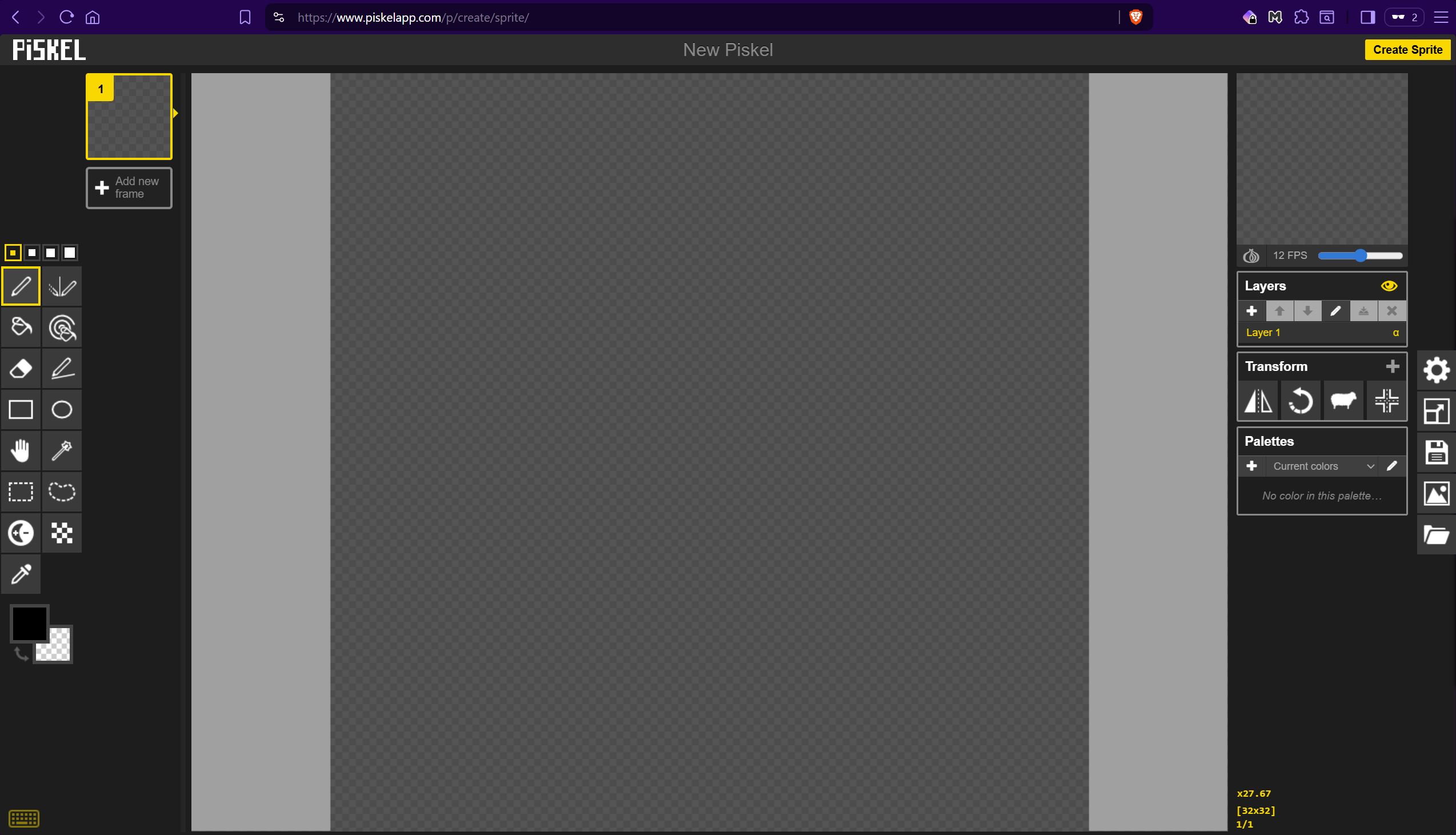
When creating a new sprite, you’ll be greeted with a blank interface. It provides the main drawing area in the center, drawing tools on the left, animation frames in the top left, animation preview and transform tools on the right, and file tools on the far right.
Drawing tools

Drawing Tools

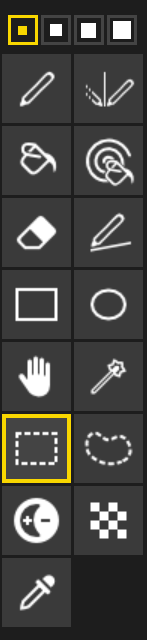
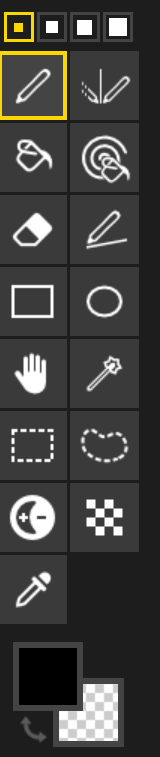
The drawing tools on the far left of the interface allows you to draw on the canvas and make minor edits. The very top squares allow you change the size of your brush and the color selection on the bottom allow you to change your primary and secondary colors. Tools have different uses depending on input. For example, left clicking on the pen tool draws a dot. Adding shift, alt, or ctrl adds additional features. Hovering over a tool allows you to see what is available. Right click allows you to use your secondary color instead of your primary. When your secondary color is transparent, like seen in the screenshot, right clicking acts as an eraser.

Some particularly useful tools are:

  • Pen - Allows you to draw things
  • Paint Bucket - Fills in areas of the same color
  • Eraser - Get rid of any pixels and make them transparent
  • Rectangle and Circle - Draws a perfect rectangle or circle
  • Rectangle or Lasso Selection - Allows you to select an area on the canvas

Frames

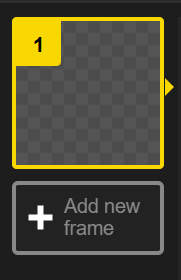
Frames allow you to animate your art. Animations flip through 1 frame to the next to portray movement and change. For example, if you wanted to animate a train moving forward 10 meters, you’d have the first frame being its starting point, then the next has the train moved forward a meter, and the next another meter, and so on and so forth until it has reached its destination mark. When frames are flipped through quickly, they look like continuous movement. The more frames the more fluid, but also the more work.
Animation frame
Advanced tools

Advanced Tools

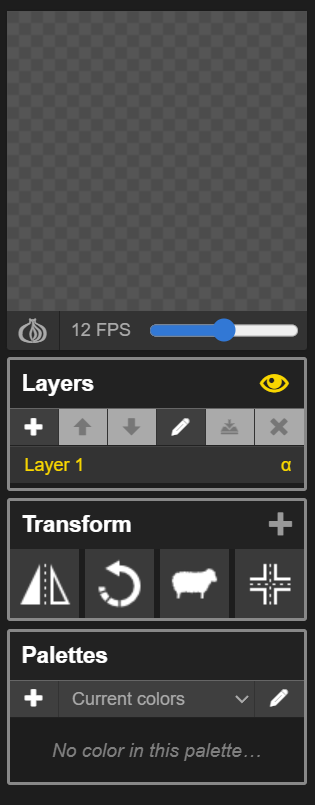
The advanced tools section contains all the miscellaneous tools. The very top is an animation preview that shows you what the animation currently looks like. You can change the frames per second with the slider below it. Under that is the layers. Layers allow you to separate sections of a frame so they can be edited easier. For example, you may have a layer for the base artwork and another layer for the shadows. Below that is the transform section. Transform tools allow you to make major changes to the canvas or selected area such as mirroring it, rotating it, cloning the current layers to all frames, and aligning the item in the center of the canvas.

File Tools

These tools allow you to edit preferences, resize the canvas, save your work, export your frames, or import a files.

  • Preferences allow you to change grid settings and other miscellaneous settings.
  • Resize allows you to set the height and width, scale the image, and decide where the anchor for the resize happens at is. For example, setting the anchor to the top left and increasing the height and width will add space to the right and bottom.
  • Saving the file either allows you to either save it in your browser or as a downloadable .piskel file. I have found downloading the file is more reliable.
  • Exporting your work allows you to download the animated gif, a png sprite sheet, a zip archive of all the frames as individual pngs, or as a C file. It also allows you to scale it up to 32 times its original size. Note: Exporting as a gif using Brave browser creates random yellow dots. Use a different browser instead.
  • Finally, you can import the previously mentioned .piskel file or browser saves to continue where you left off or import png, jpg, or gif files.

File tools

Fish Example

Pixel art animation of a spinning fish

Demonstration

To show how everything ties in to create an animation, I’m going to demonstrate how to make the spinning fish above step-by-step.

New sprite page

Step 1

Create a new sprite via the "Create Sprite" button in the top right.

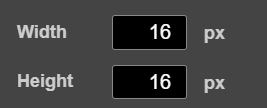
Resize tool witha a width of 16 pixels and a height of 16 pixels

Step 2

Click the resize button on the right in the file tools. Change the width and height to 16 by 16. This lowers the number of pixels on the canvas and makes it a little easier to see. I often start low and add size up to add more detail later.

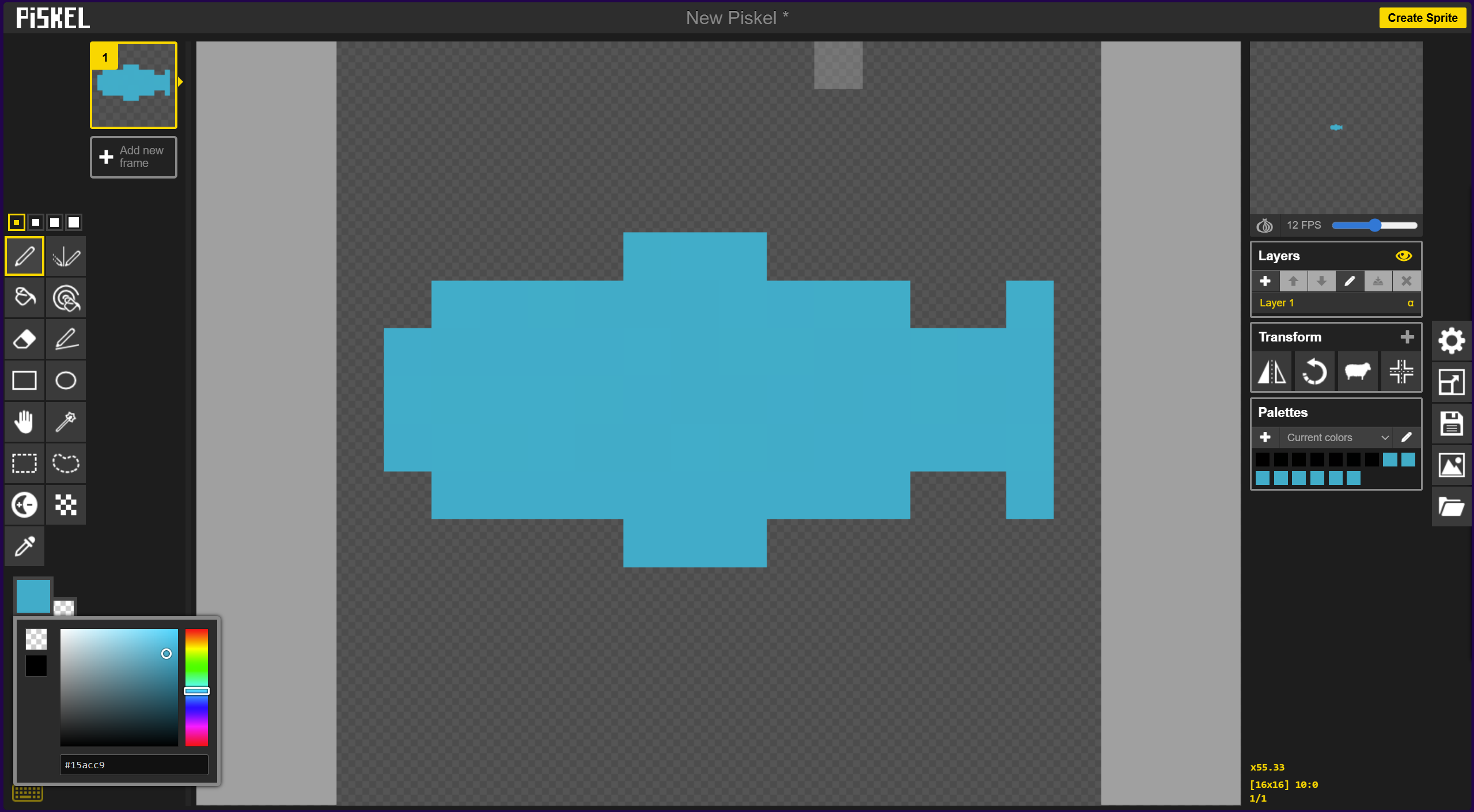
Silhouette of a fish

Step 3

Draw a the silhouette of what your item. Silhouettes help show what your drawing will look like at a glance before any details are processed.

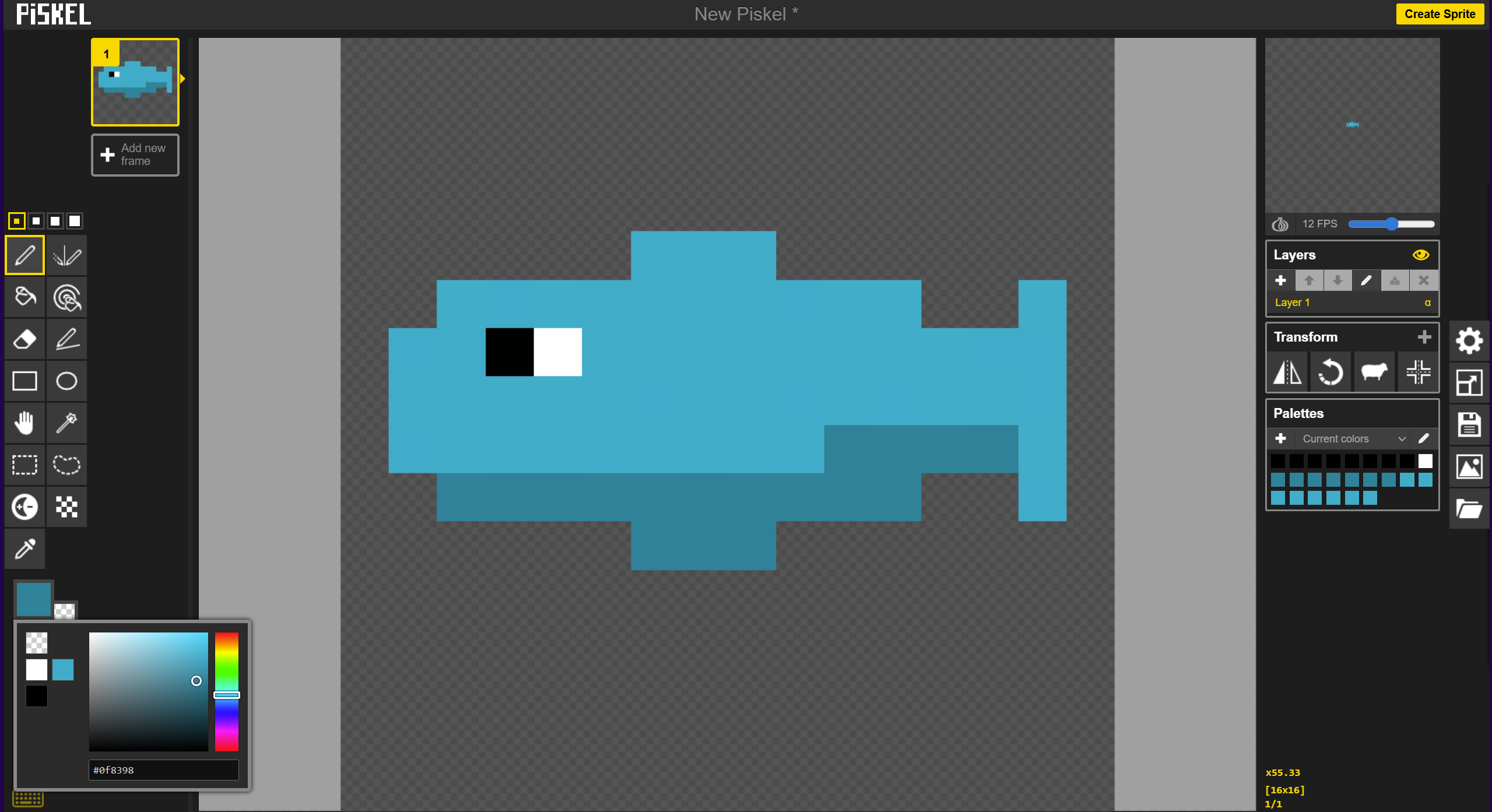
Sideways fish with added details of an eye and shadows

Step 4

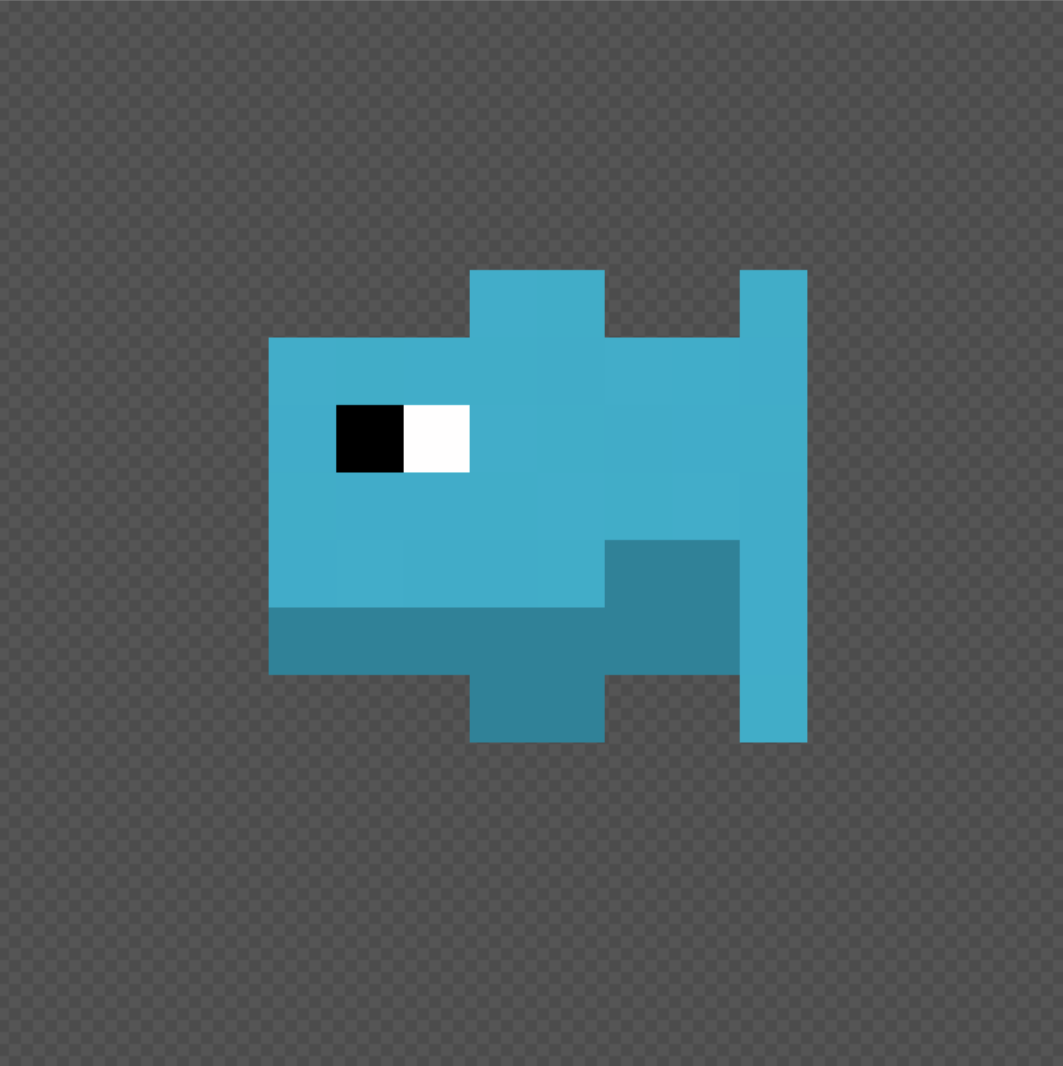
Add details. I added an eye and some shadow on the underside of the fish. Make this look good, but try to keep it simple. With this, we have our first still frame!

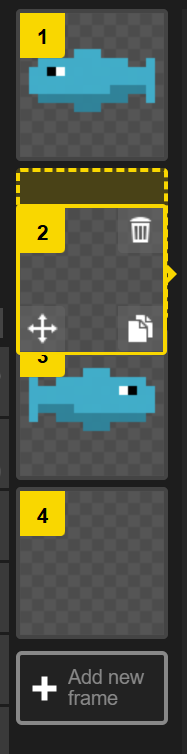
Hovering over frame 1 to reveal duplicate frame buttom 2 frames, one being the duplicated frame

Step 5

To turn our frame into an animation, we need to add more frames. One way to do this is continually splitting the movement in half. For example, if we want to make this fish spin, we can split 360 degrees in half and have a frame with the fish at 0 degrees and another at 180 degrees.

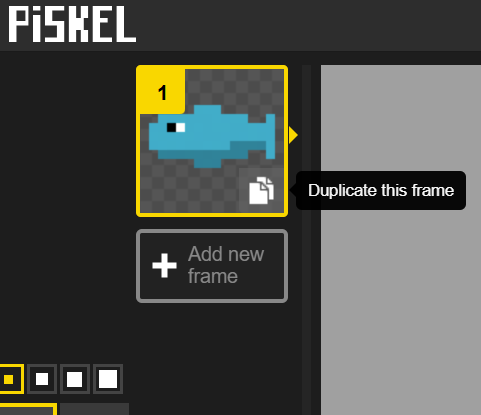
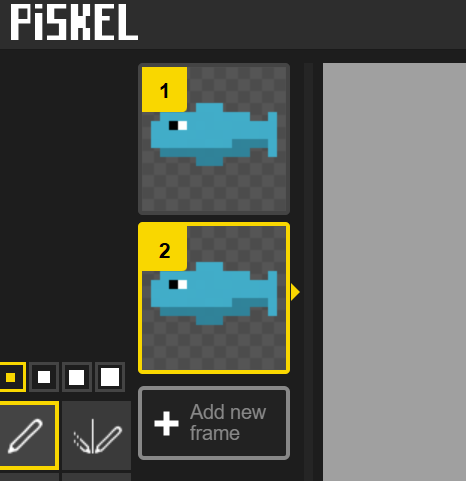
Since the fish will look the same at 180 degrees as it does 0, just mirrored, we can copy it. Hover over the frame and click "Duplicate this frame."

View of the canvas with the mirror button highlighted

Step 6

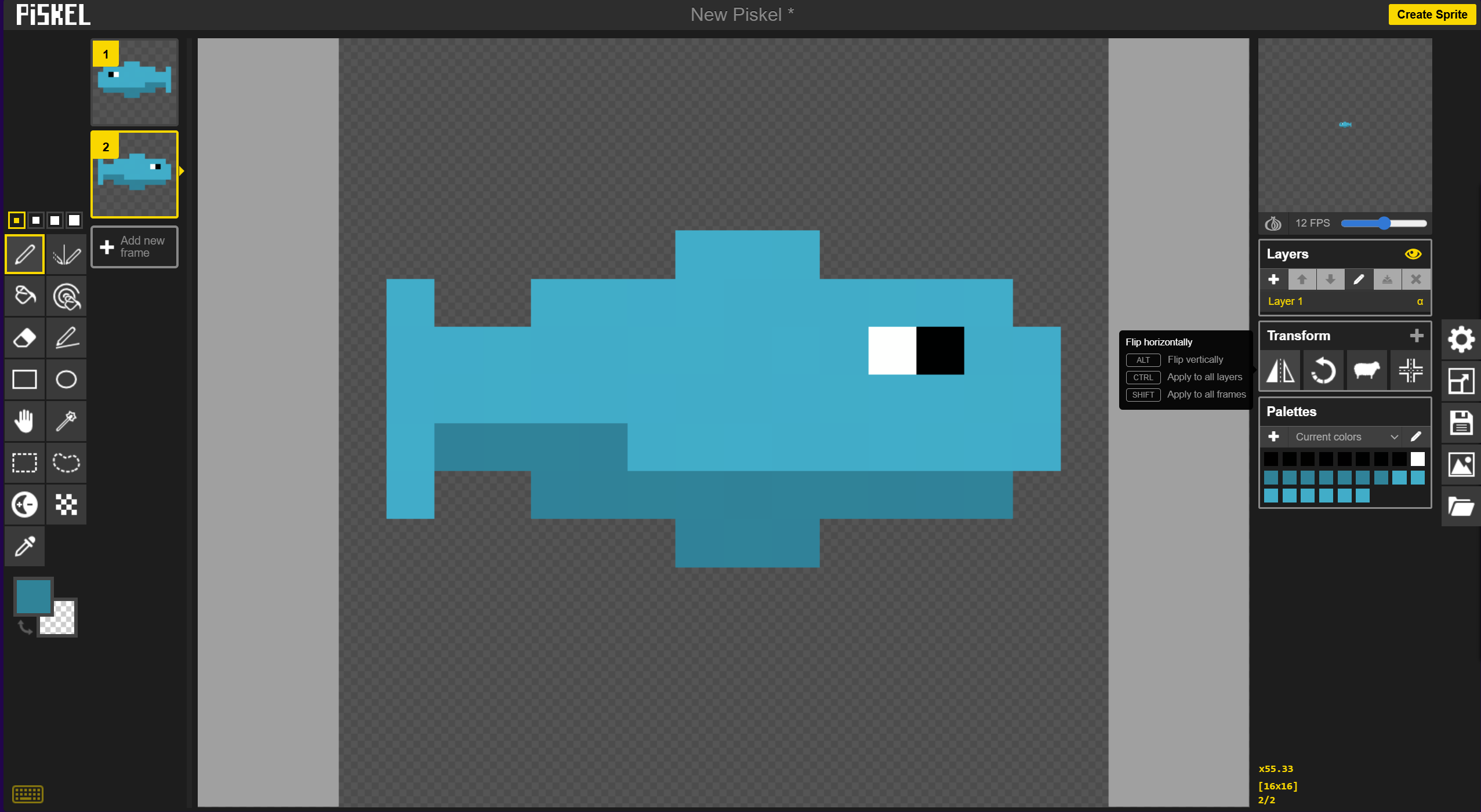
To spin the fish around 180 degrees, click the mirror button located in the advanced tools section on the right side.

Step 7

We now have a the frames for a very rough spinning fish animation! Let's make it a bit smoother by cutting the animation frames in half again.

The fish is currently at 0 and 180 degrees facing left and right. We can add two new frames to symbolize the 90 and 270 degrees now. At 90 degrees, the fish will be facing the camera. At 270 degrees, the fish will be facing away and we'll be seeing its tail.

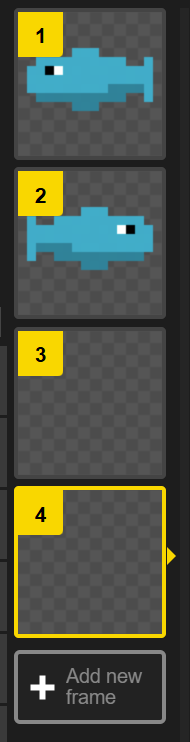
Create 2 new frames clicking the "Add new frame" button twice.

4 frames, 2 fully drawn ones and 2 new empty ones
An empty frame being moved to rest between the 2 drawn frames

Step 8

Click and drag one of the empty frames inbetween the 2 existing frames. This frame will become our front-facing frame.

Step 9

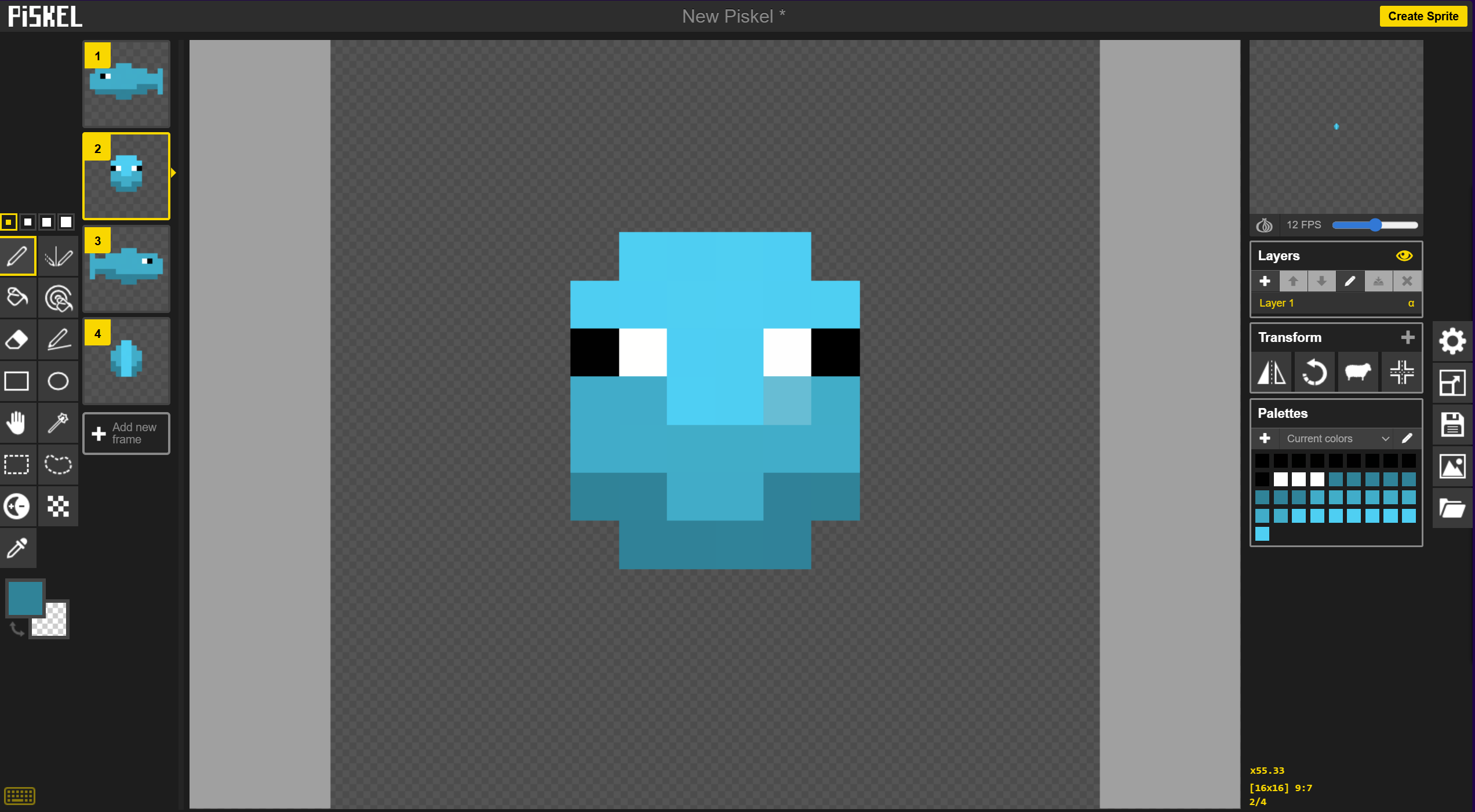
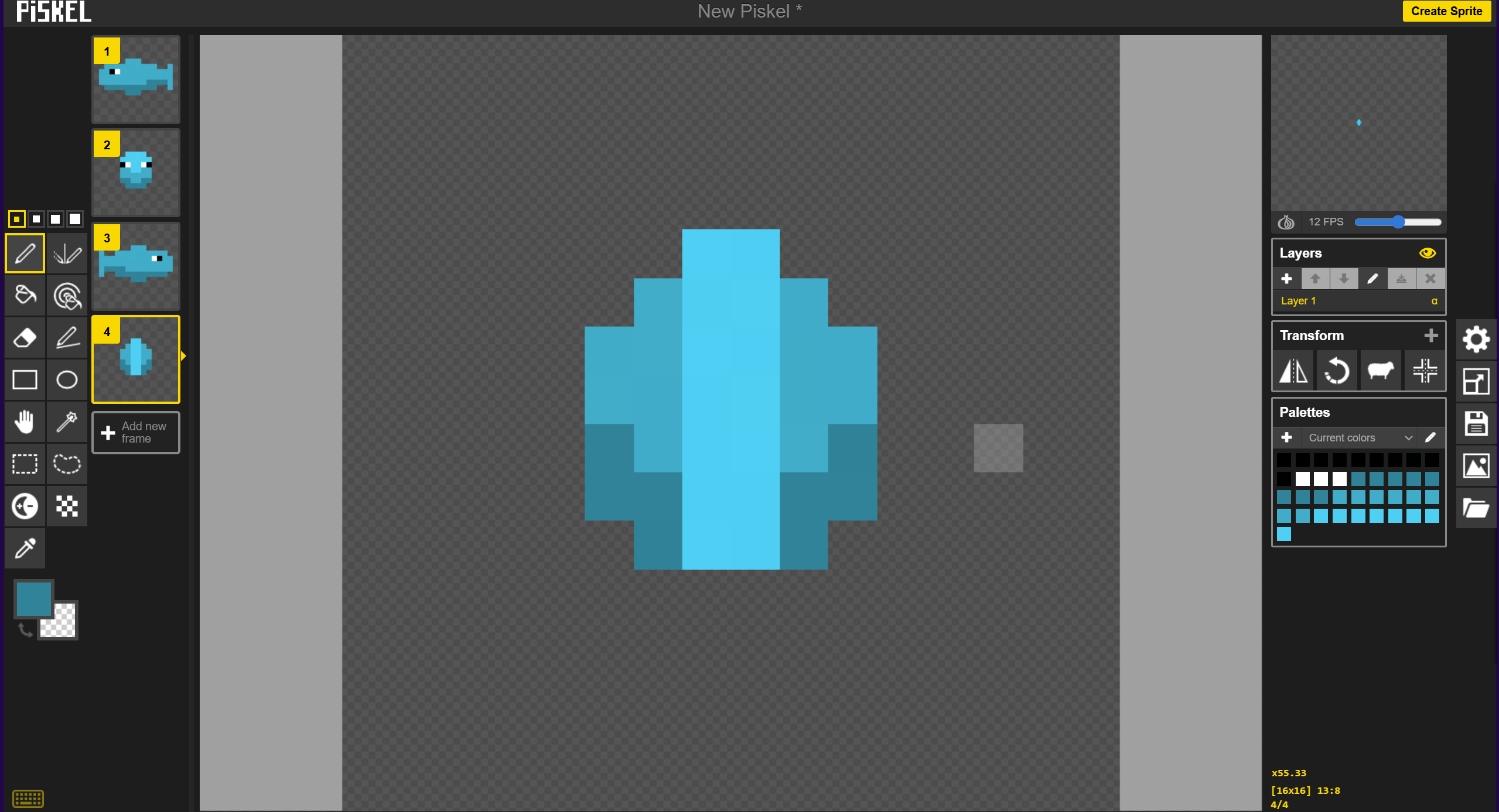
Draw the inbetween frames. One frame is for front facing (90 degrees) and another is for back facing (270 degrees).

Since the silhouette is very ambigous, make sure the add enough highlights and shadow to make the Fish easily identifiable.

Front facing fish Tail end of the fish
Animation preview panel with the full sized preview button highlighted

Step 10

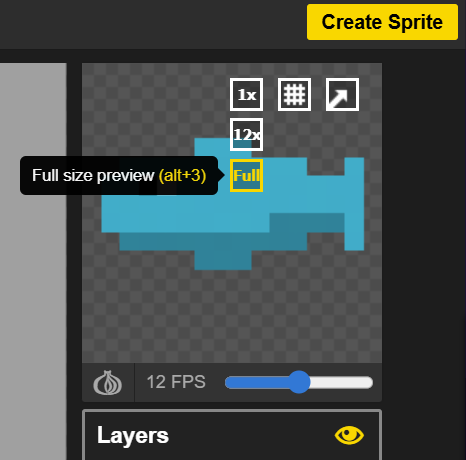
We've got a pretty solid set of frames now. Let's take a look at what it looks like. First though, we need to make the animation preview a lot bigger.

Hover your mouse over the animation preview panel in the top right. Hover over the 1x size button and click the Full Size Preview button.

It may also be going incredibly fast. Use the FPS slider below the preview to change it from 12 FPS to 4 FPS.

Spinning fish preview

Quick Review

Seems pretty good so far. This could be good on its own, but it seems a little choppy. Let's add in an inbetween frame between each of the existing frames.

Step 11

Add in empty frames between each frame just like we did in step 7 and 8 so it looks like the frames on the left.

Since we previously had the fish facing at 90 degree intervals, these new frames are going to be at 45 degree intervals and be at an angle.

8 frames with empty inbetween frames between drawn frames
Drawing tools with the rectangular selection tool selected

Step 12

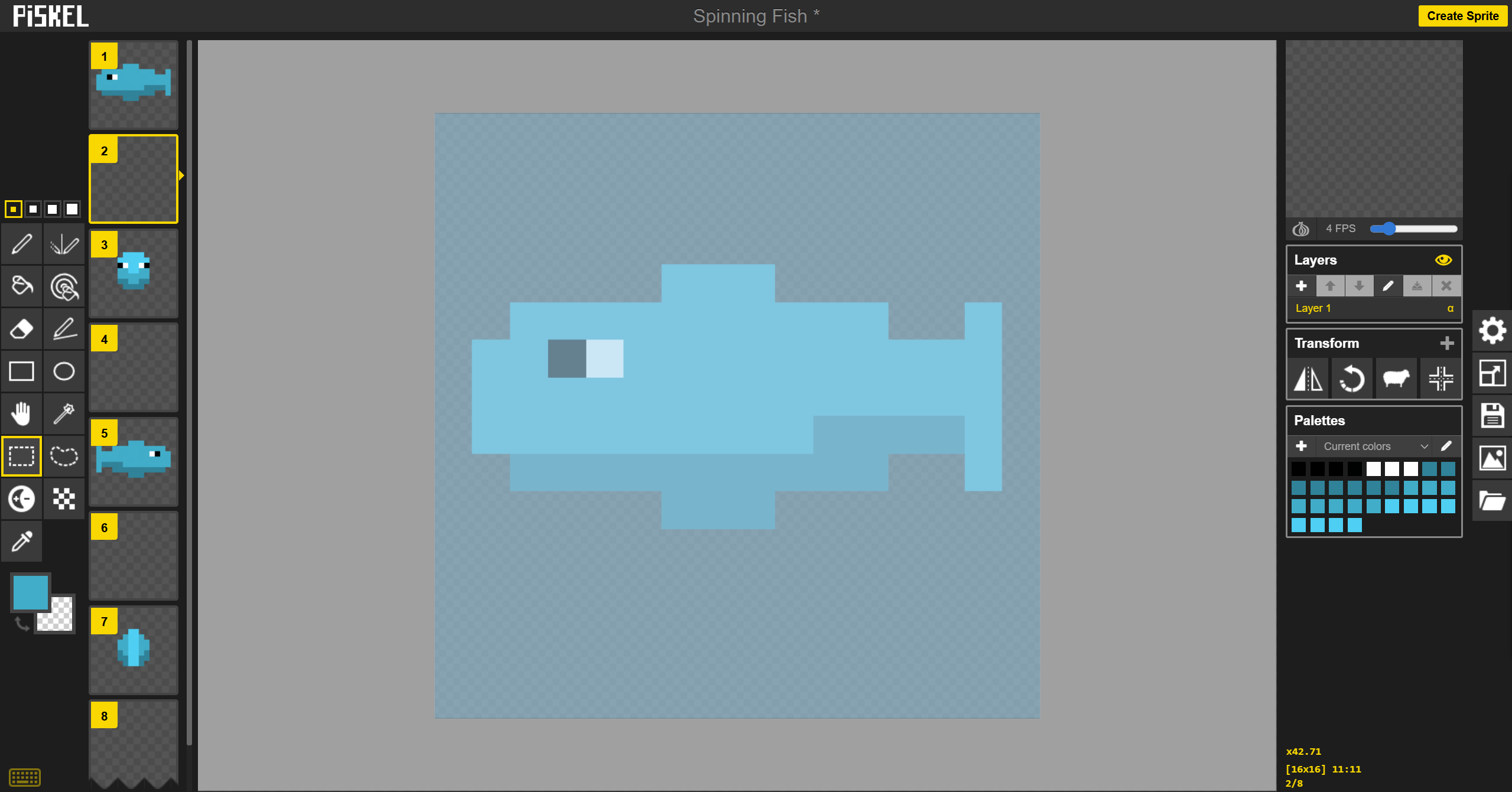
To help create the 45 degree angle, I'm going to be using the fish's side profile as a base. This means I'll copy frame 1 and edit it in frame 2. Duplicating frame 1 works in this instance, but for demonstration purposes, it's also possible to copy and paste the contents of frame 1.

In the drawing tools on the left side, click the Rectangular Selection tool.

Frame 1 fish pasted into frame 2

Step 13

In frame 1, click and drag from the top left to the bottom right. Copy the selected area by pressing CTRL + C.

Move to frame 2 and paste via CTRL + V.

Fish drawing with all its details removed and temporary guide lines down its center

Step 14

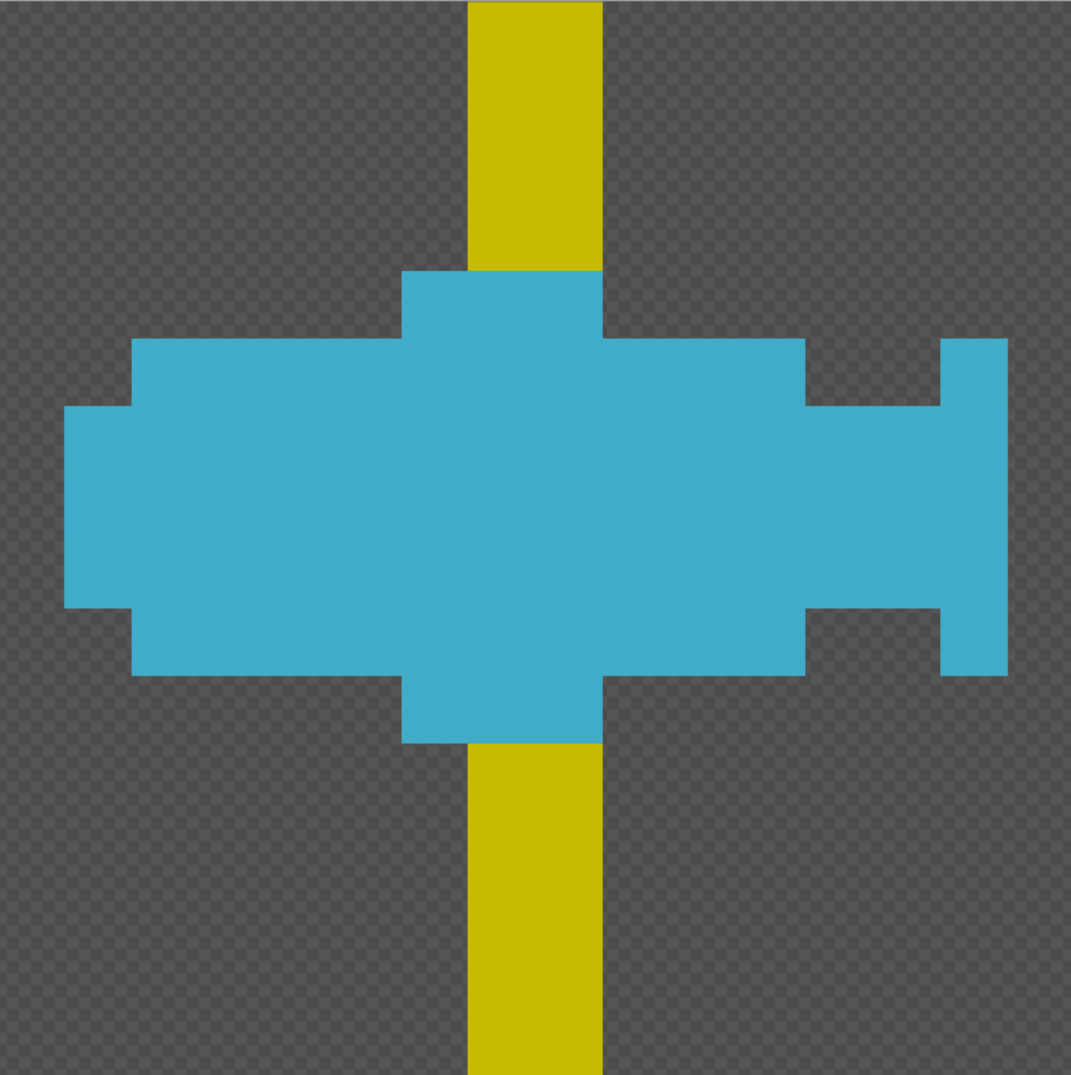
Now to make this fish face at angle. Start back with the silhouette by coloring over all the details in a single color.

Mark a line down the center of the canvas to indicate the axis that the fish is spinning upon.

Perspective

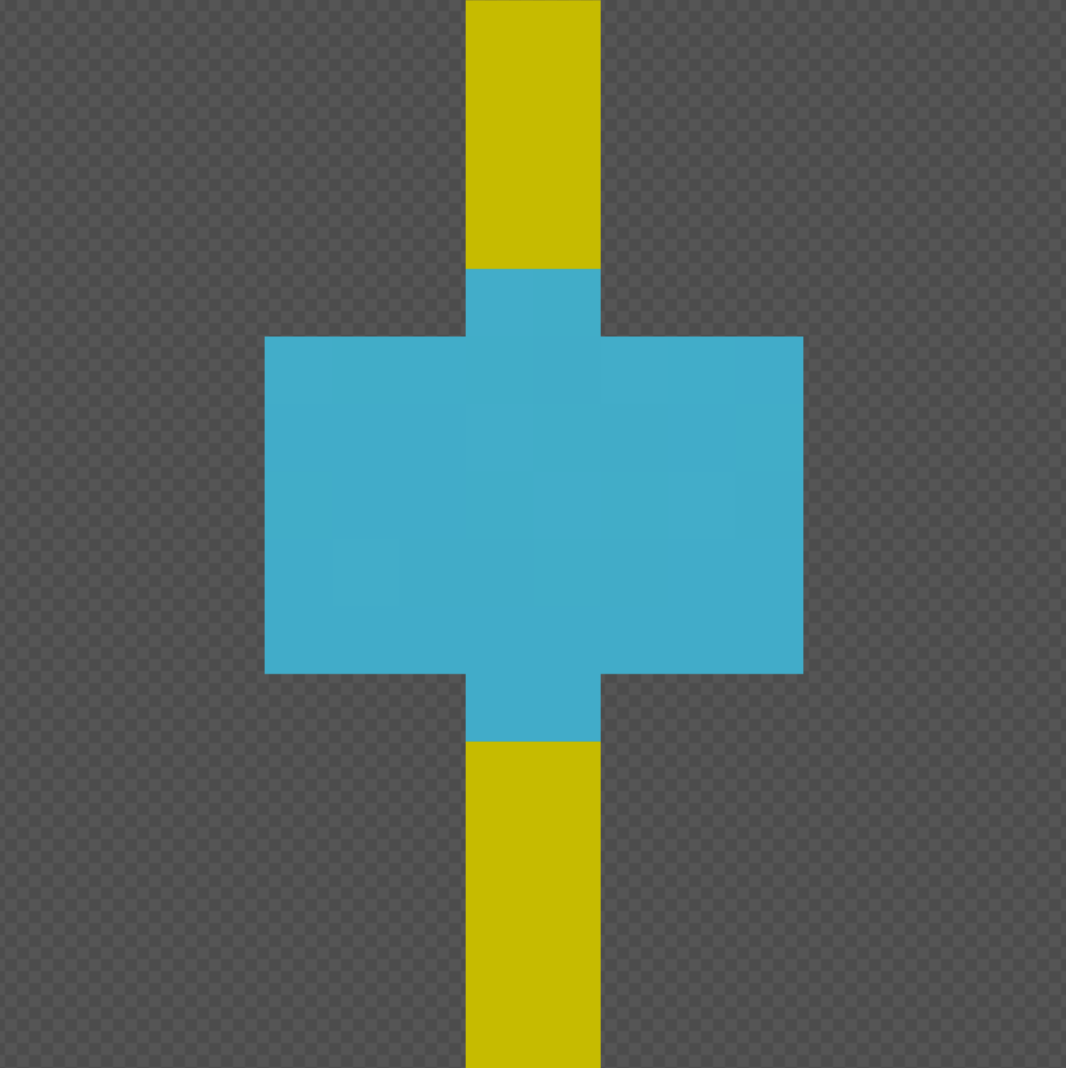
When an object spins around a centered axis (which is used in this example), the view of the left and right sides increases or decreases at the same rate. In more applicable terms, as the fish faces towards the viewer, the left side of the axis and right side lose pixels at the same rate.

If we bring in the left side by 1 pixel, we also need to bring in the right side by 1. This keeps the fish balanced along the axis and is visually pleasing.

Step 15

Trim off the pixels from the left and right equally so the silhouette vaguelly looks like its at a 45 degree angle between completely flat and facing the viewer.

Trimmed silhouette of a the fish.
Fish with more detail

Step 16

Get rid of the axis guideline and add in details. I added the fins, tail, eyes, and shadow.

Looking at the animation preview, it kind of seemed like the fish just shrunk instead of turned...

Step 17

To fix this, I shortened the fish even more to emphasis the change and made the eye look right to further imply motion.

It's ok if it looks goofy. Frames change fast in animations. It's often hard to notice.

Shortened goofy looking fish with an eye looking right
All 8 frames filled in

Step 18

Copy and paste that frame to the other empty frames as described in step 11 or steps 7 and 8 (whatever you prefer).

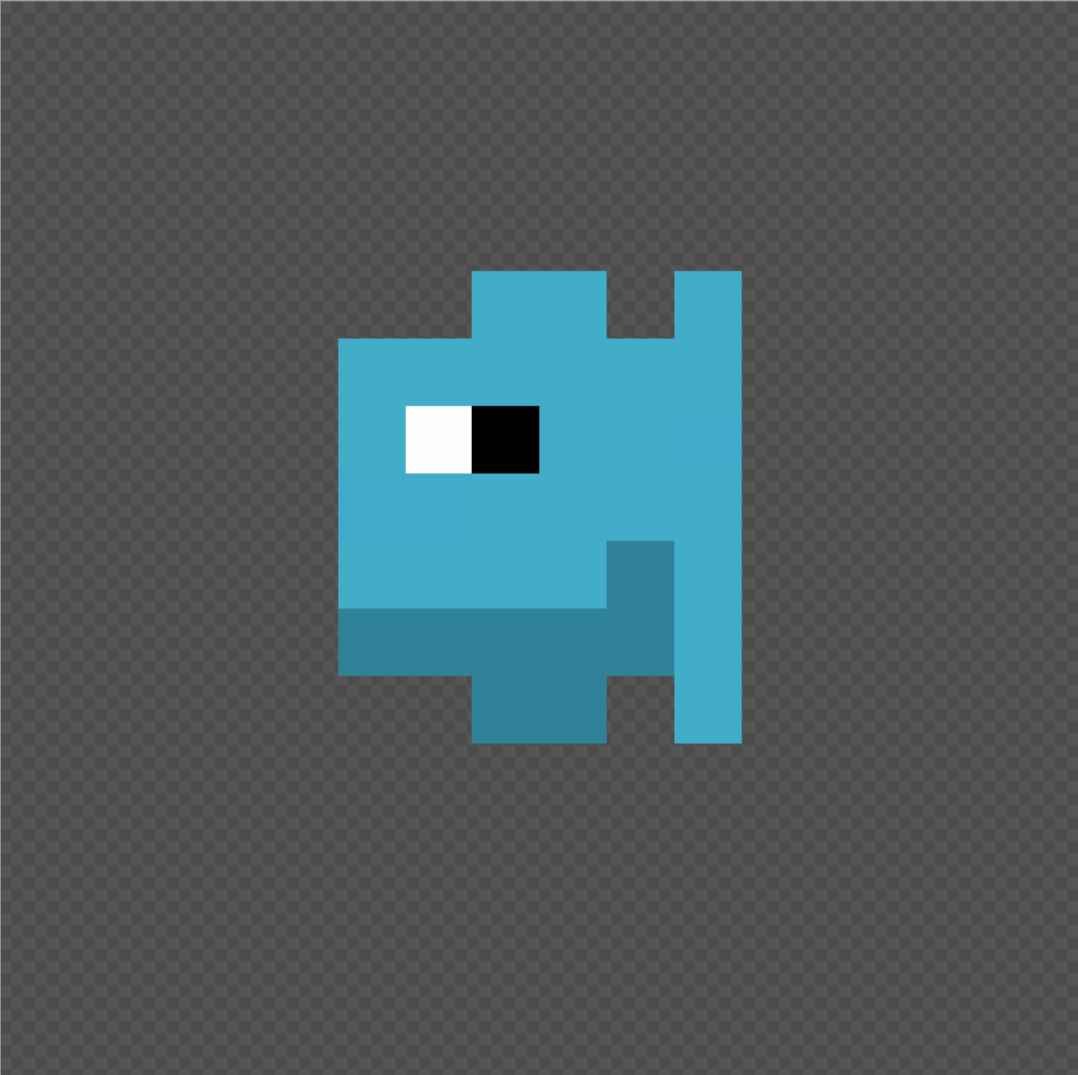
Mirror frames 4 and 6 so they face right and carry on the visual movement.

This marks the completion of the fish facing left (0 deg) and moving all the way to the right (180 deg). Now just need to adjust frames 6 and and 8 to be facing away from the viewer.

Step 19

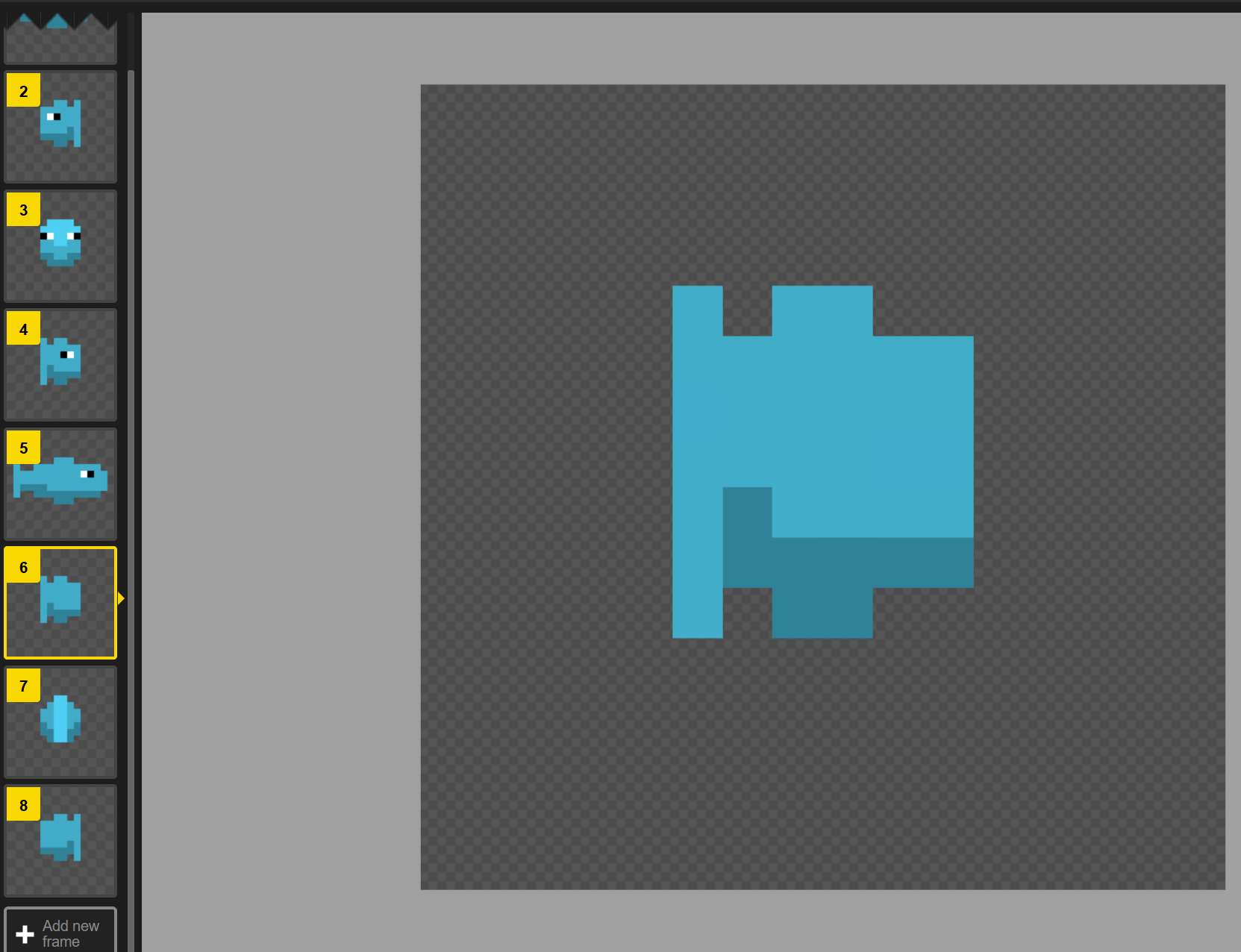
The easiest way to make the fish look like it's no longer facing the viewer is to simply cover up the eye.

On frames 6 and 8, cover up the eye with the same color as the body.

Back end of the fish at an angle
Spinning fish preview

Step 20

View the preview.

It looks really good and quick smooth :]

Let's do some final touches.

Resize panel with left, right, and bottom adjustments

Step 21

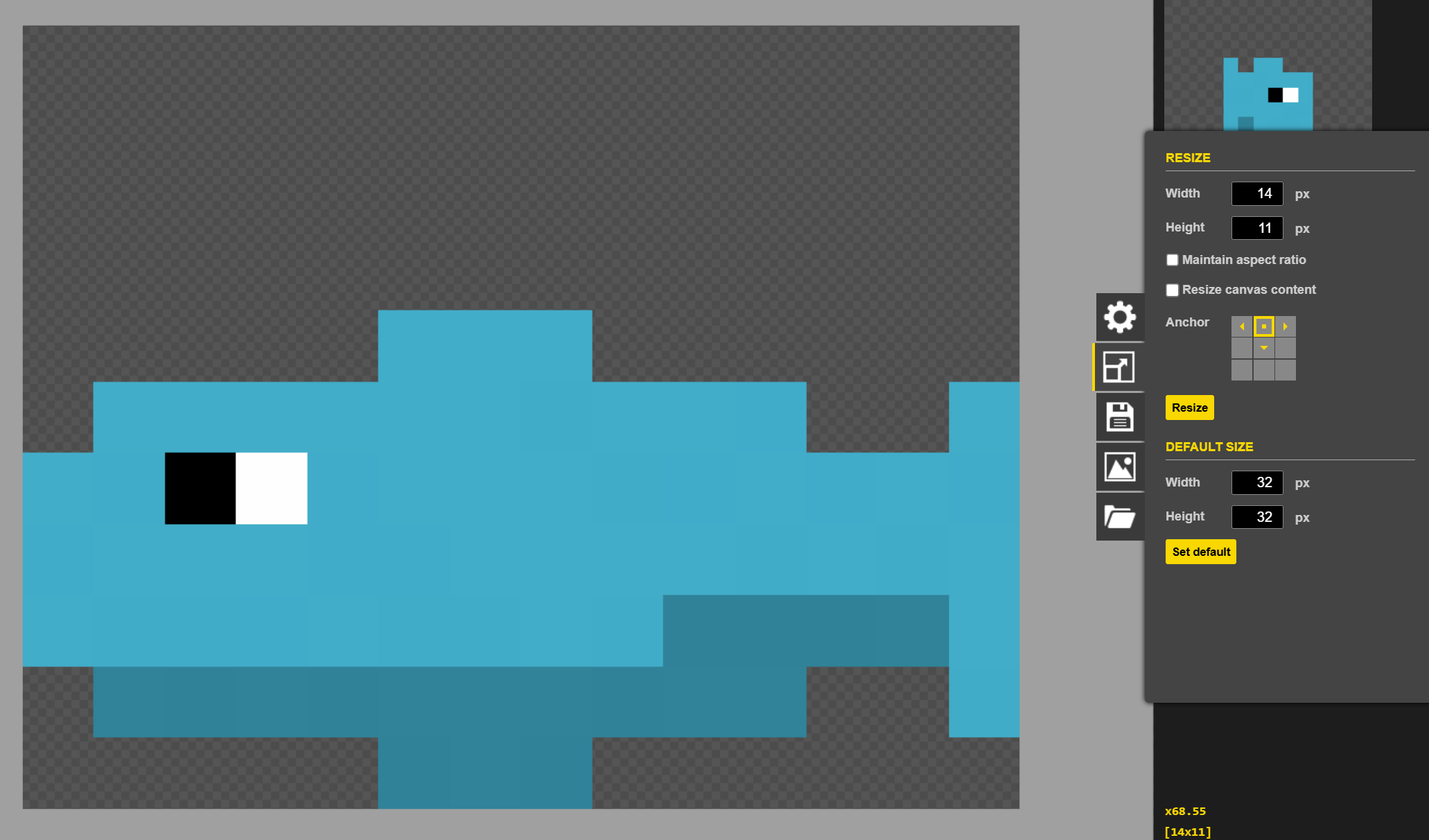
Get rid of the empty space around the fish by using the resize tool on the right. Find the widest frame and count the extra width we need to chop off. For the fish, it's 2 pixels. Also find the pixels below the image we need to chop off (5 pixels in this example).

Move the anchor to the top middle to chop off the left and right evenly as well as the bottom. Subtract the extra pixels from the width and height. They should be 14 and 11 px respectively. Press enter to apply.

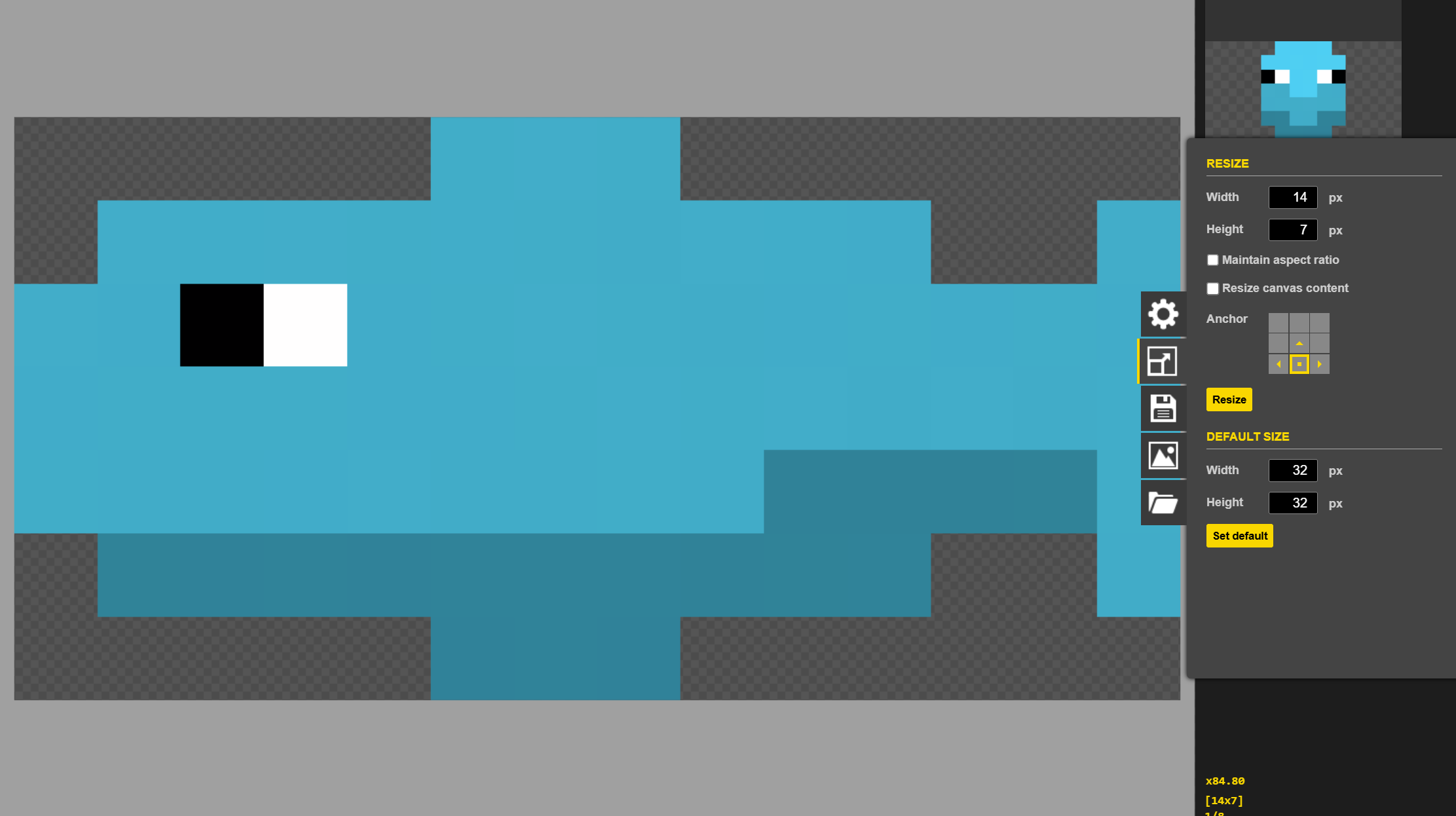
Resize panel with top adjustments

Step 22

Move the anchor to the bottom middle to focus on cuttong off the top. Adjust the height to be 5 pixels shorter.

We've got it all cropped now. Just need to save and export.

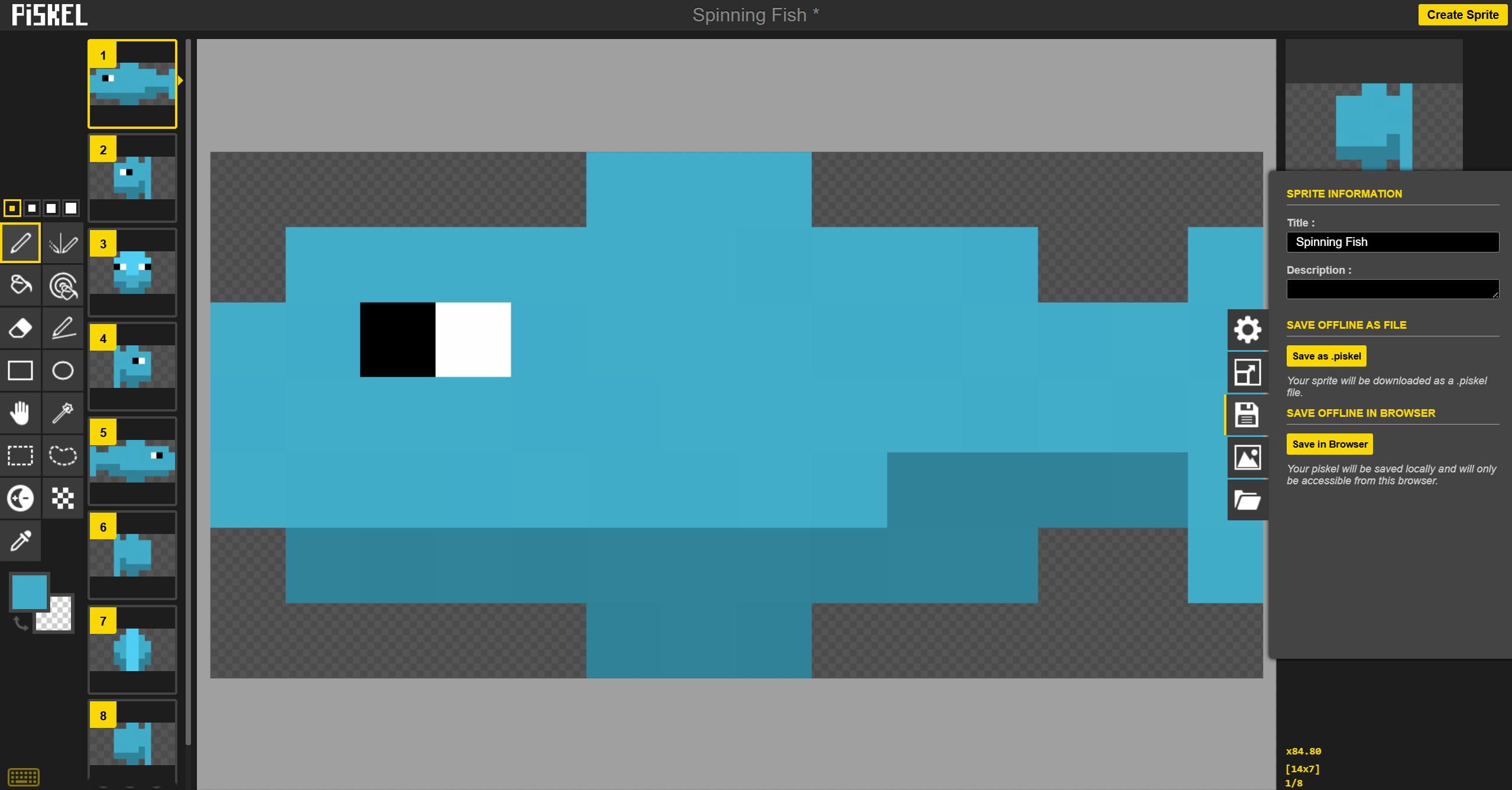
Save panel

Step 23

Saving the file saves all your frames and workarea in a single file. This is useful if you want to make edits to your art later.

Open the Save panel on the right. Rename the file to something you like and either save as a .piskel file or in the browser. I find that saving it as a file tends to be more reliable, so I am doing such.

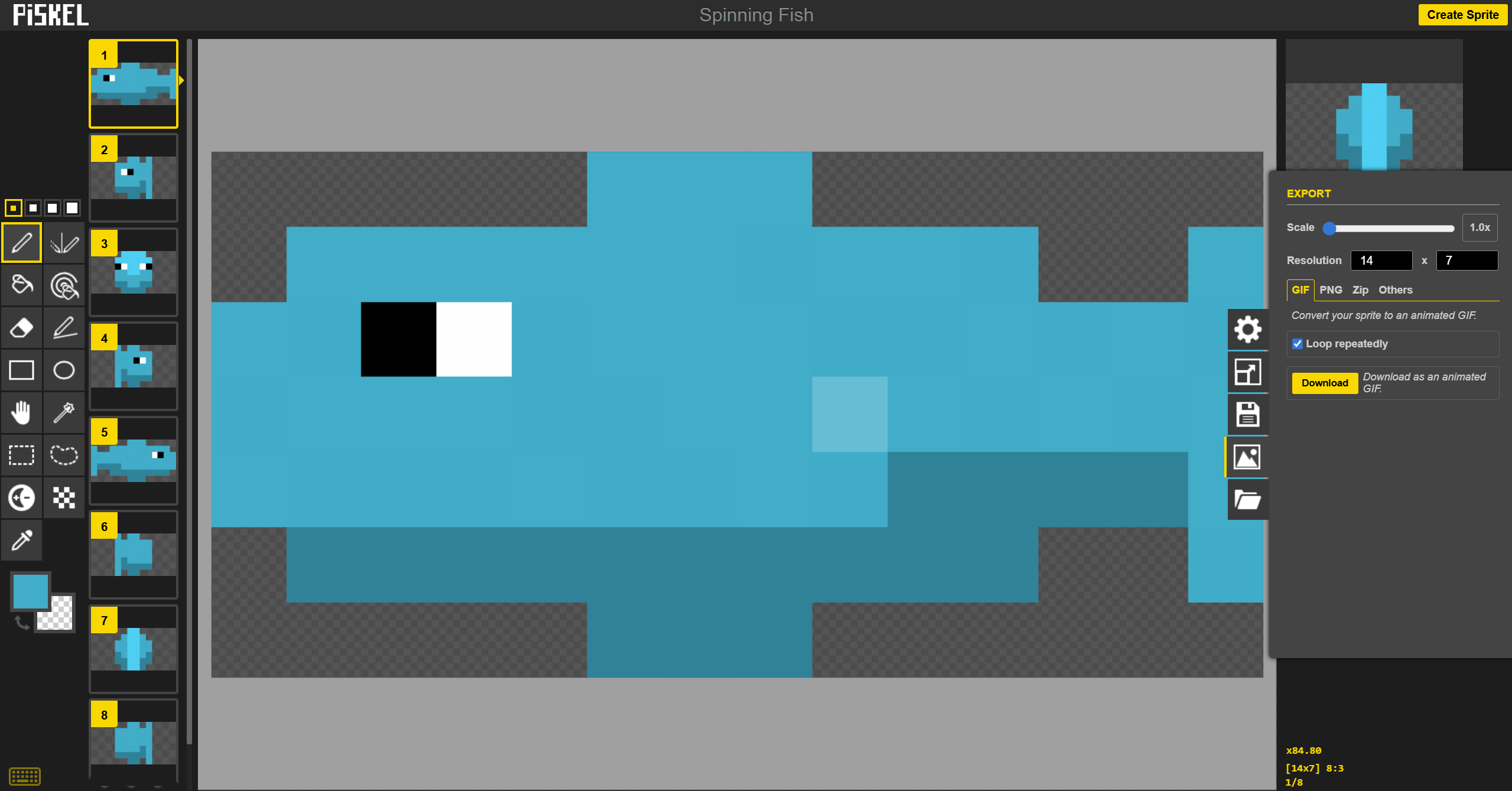
Export panel with the gif tab selected

Step 24

To get your animation out of the editor and into the world, it needs to be in some type of file. The best for animations is often a gif file.

Open the export panel and go to the GIF section (it's opened by default). If you want the animation to repeat endlessly, toggle on loop repeatably. For the fish, I am turning this on.

Adjust the scaling of the gif from just a couple pixels to as big as you want. If you are going to be sharing it with others, I suggest to go as big as possible. If you are using it for technical stuff such as a website that can display pixel-perfect images, it may be better to leave it as its smallest form. If a website or app doesn't have pixel-perfect scaling, it will likely be heavily blurred and/or tiny. It will look like this small spinning fish for example.

Hit the export button and save it somewhere!

Spinning fish final

All Done!

You should now have a spinning fish all of your own now and a better familiarity of Piskel! You can now dm your friends with custom silly animations.